Install as Mobile App
Install Digel as a Progressive Web App on your mobile device
Introduction
Digel can be installed as a Progressive Web App (PWA) on your mobile device, giving you a native app-like experience with faster loading times and home screen access.
Android / Chrome
Installing Digel on Android devices using Chrome browser:
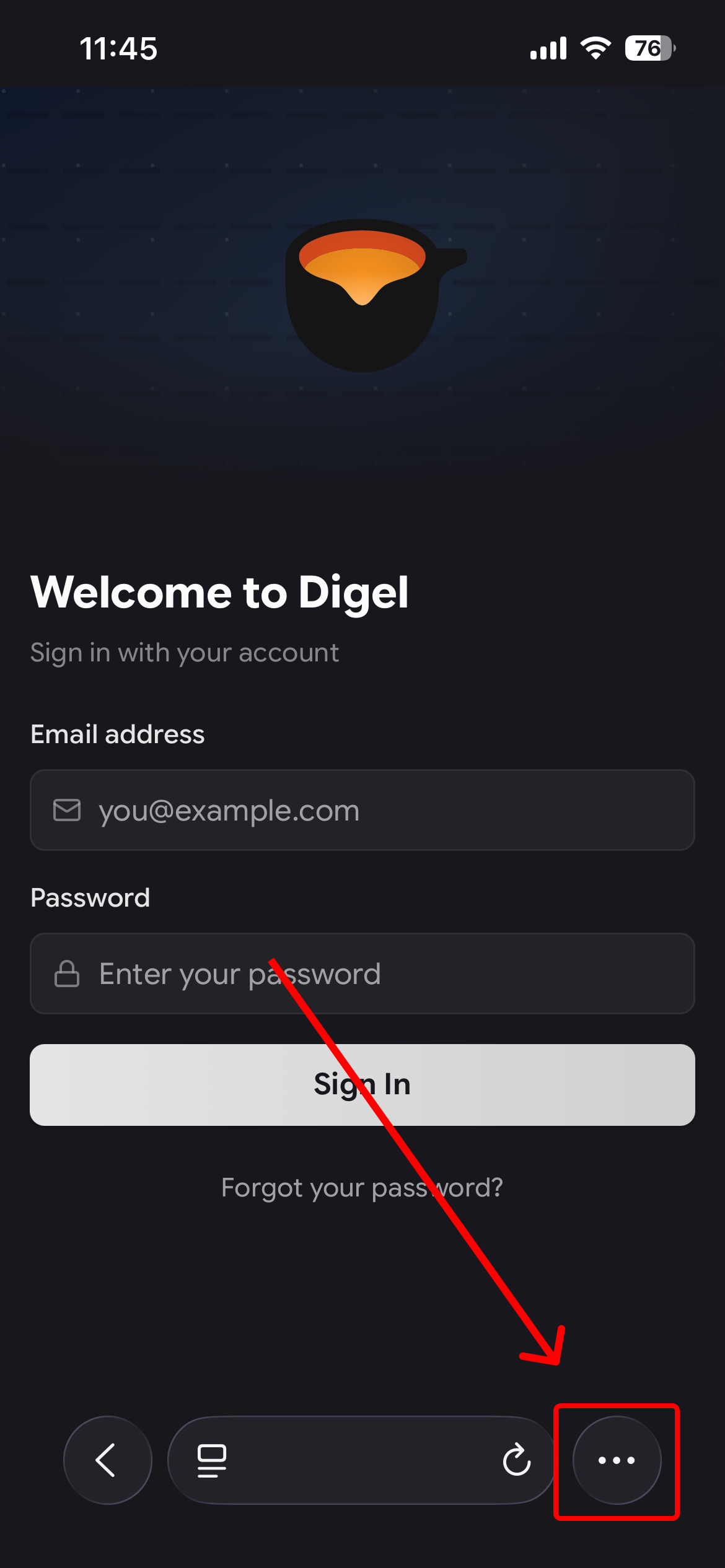
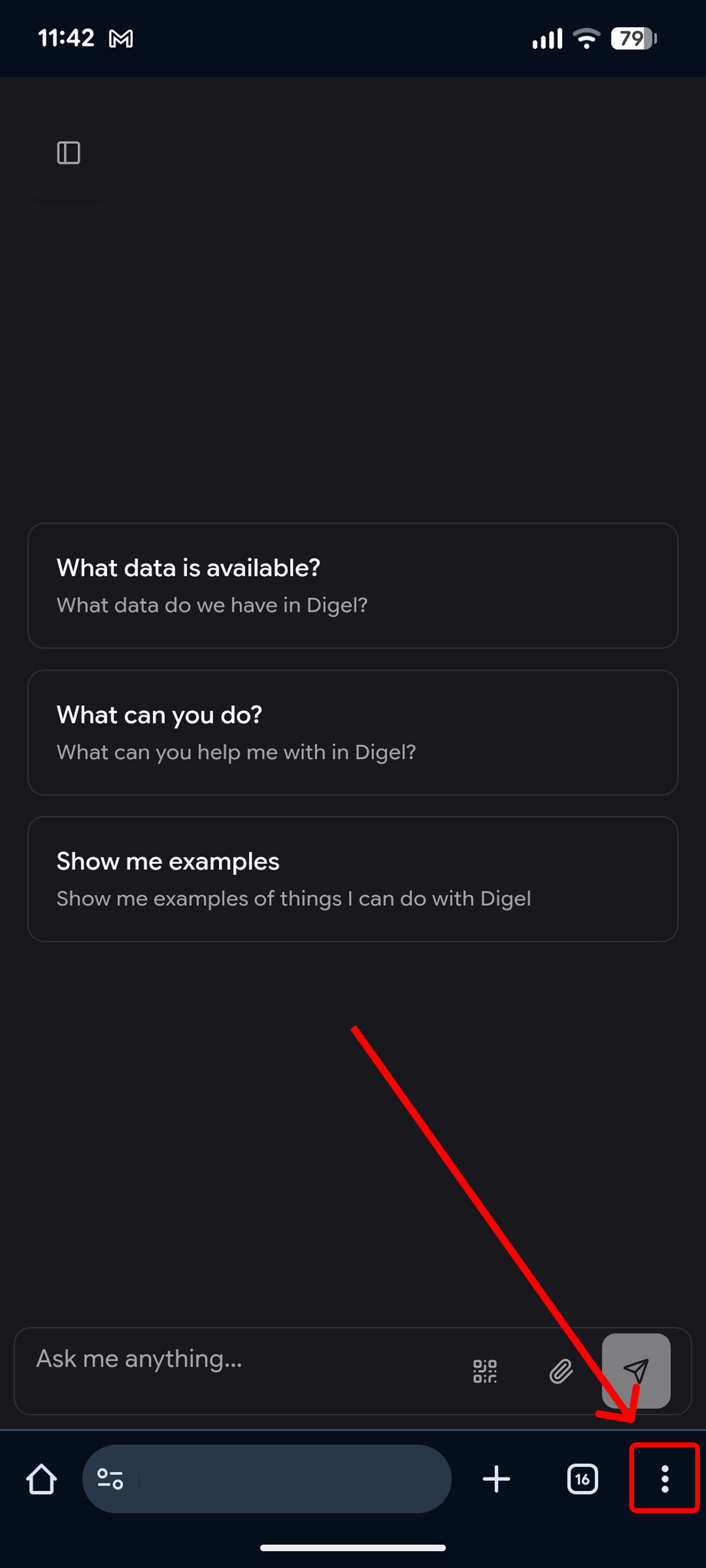
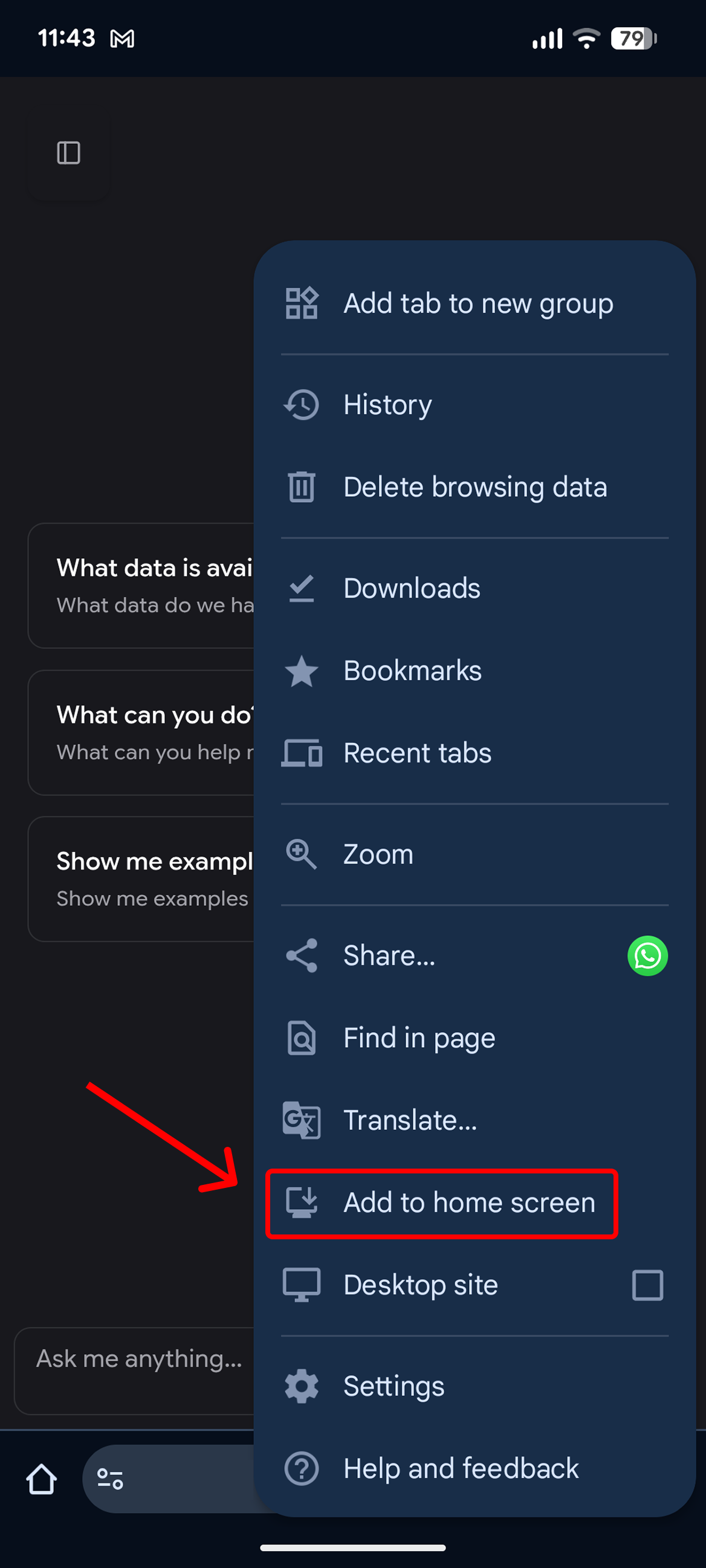
- Open Chrome menu - Tap the three-dot menu (⋮) in the top-right corner and select "Add to Home screen" or "Install app".
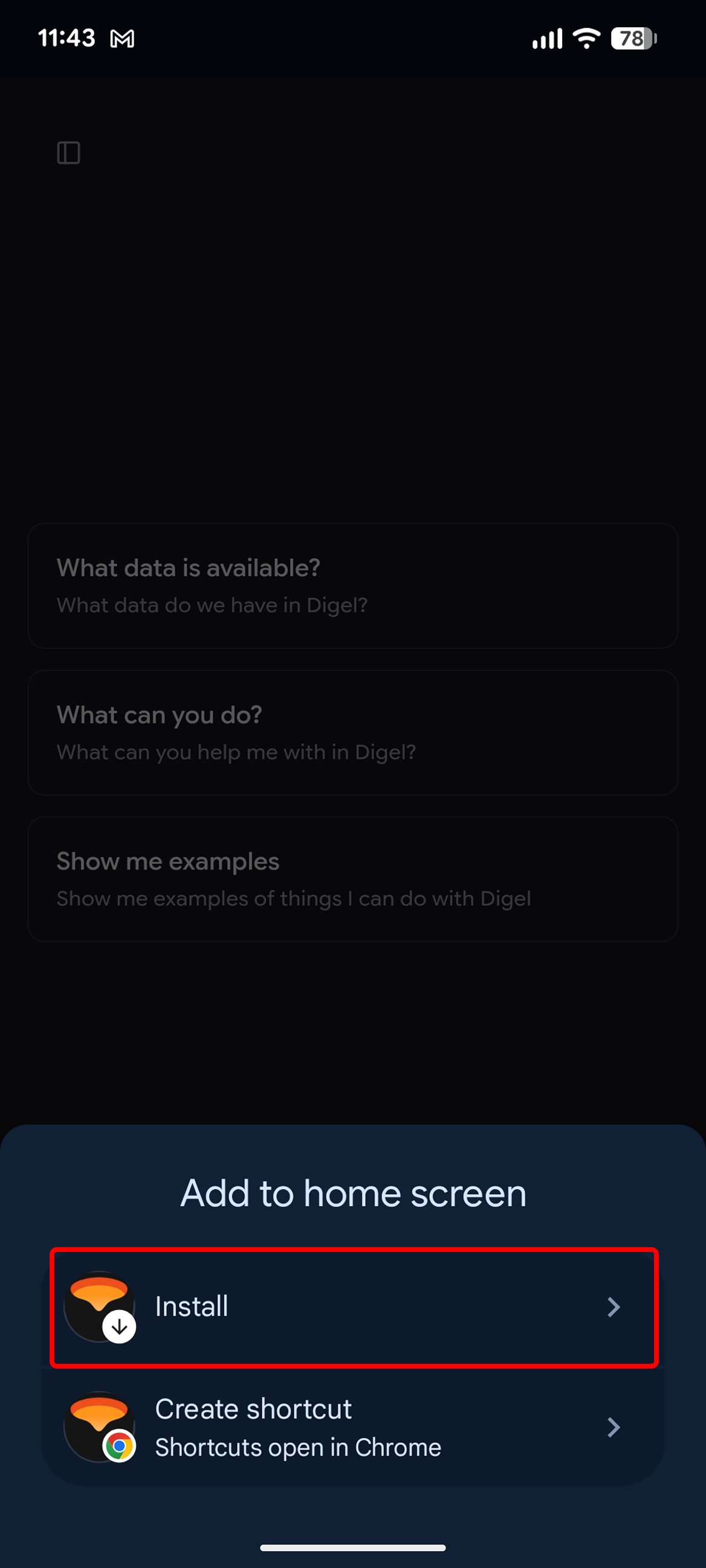
- Confirm installation - A confirmation dialog will appear. Tap "Install" or "Add" to complete the installation.
- App installed - Digel will now appear on your home screen like a native app.
iOS / Safari
Installing Digel on iPhone or iPad using Safari:
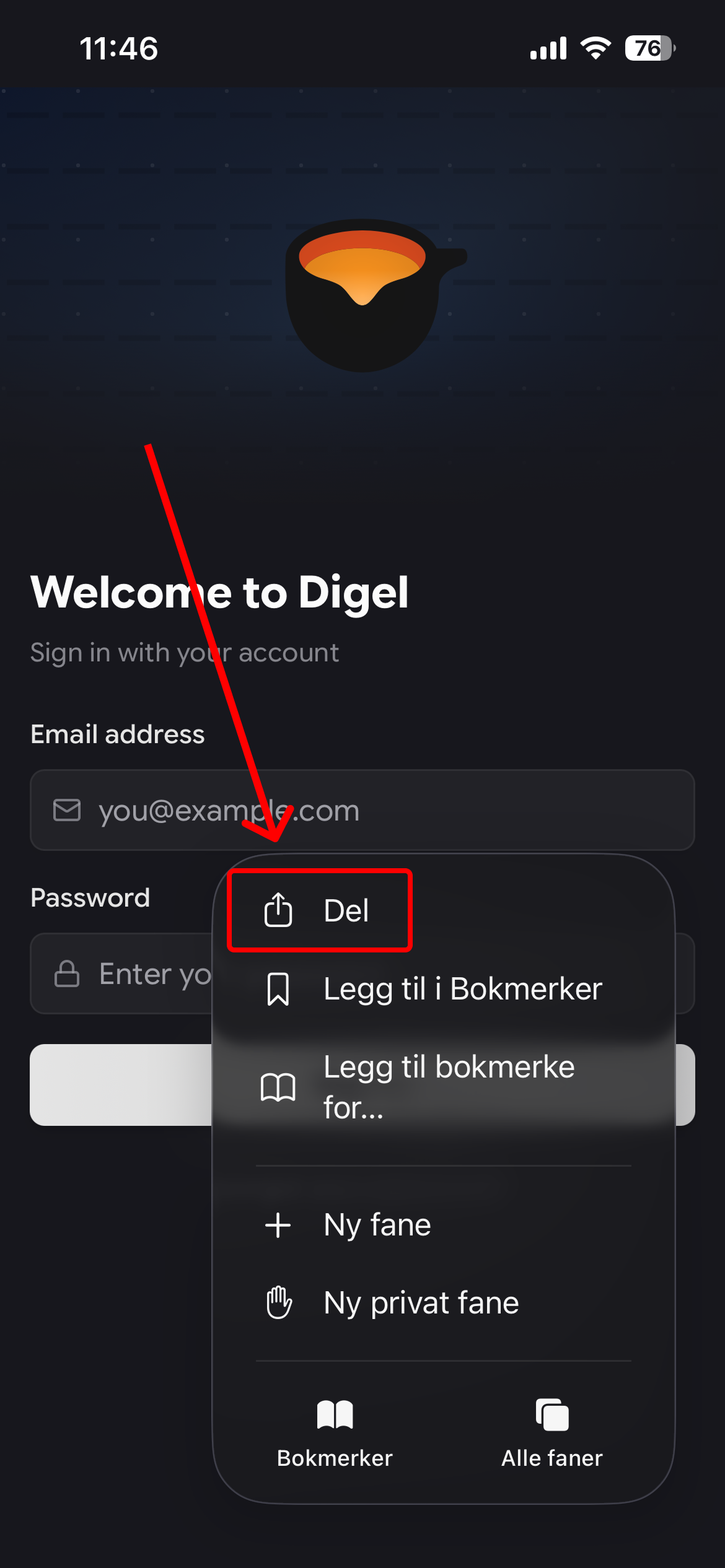
- Tap the Share button - Tap the Share button (square with an arrow pointing up) at the bottom of the screen (iPhone) or top of the screen (iPad).
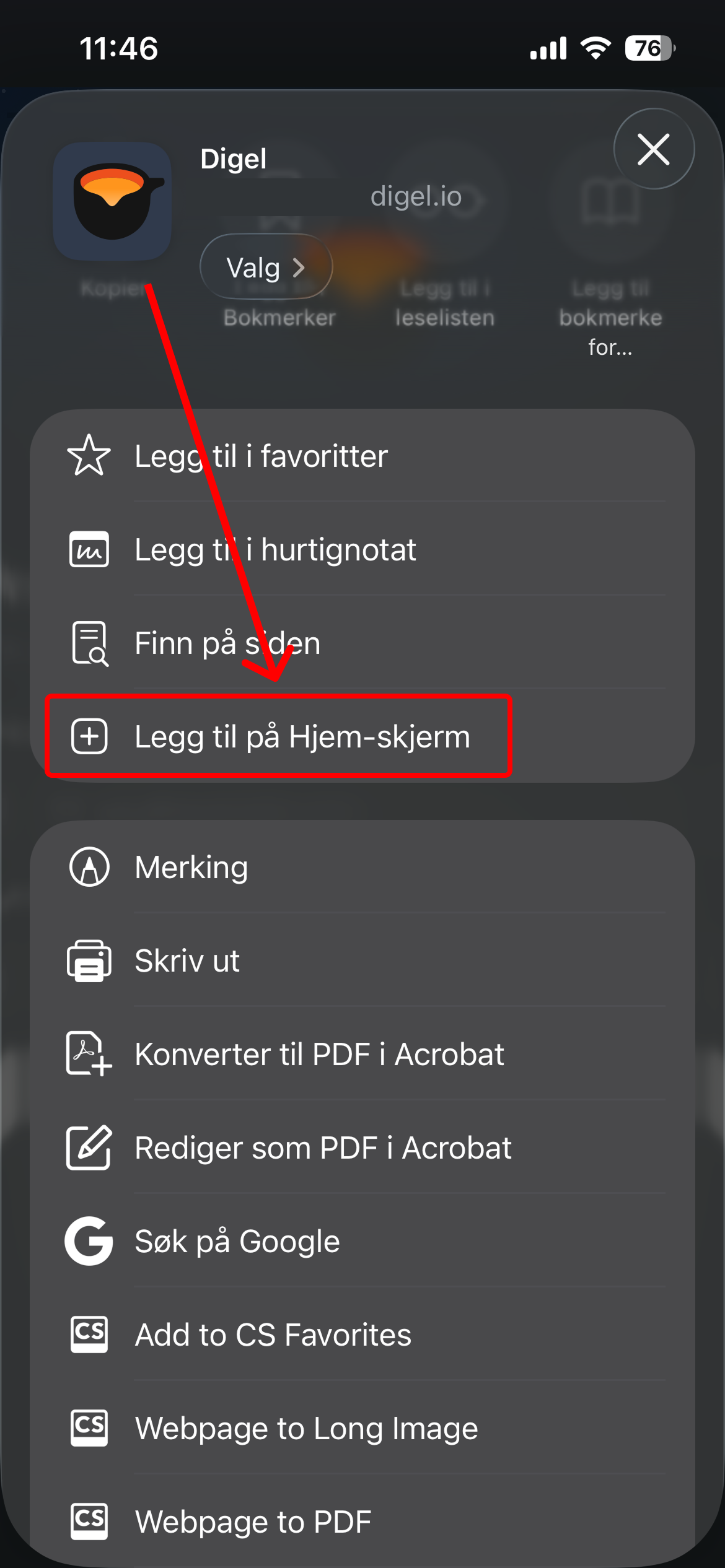
- Select "Add to Home Screen" - Scroll down in the share menu and tap "Add to Home Screen".
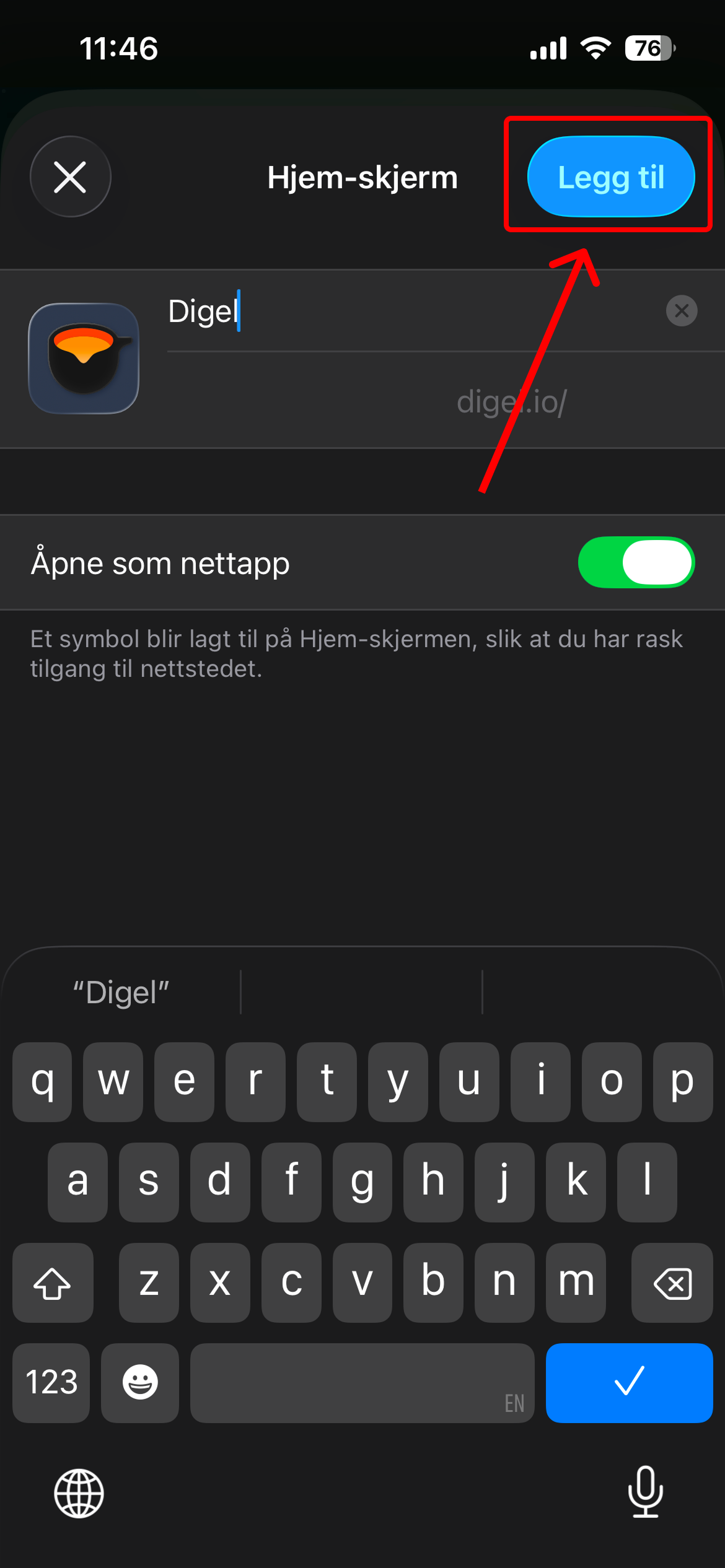
- Customize the name - You can edit the name of the app if desired, then tap "Add" in the top-right corner.
- App installed - Digel will now appear on your home screen.